For better organization, the bugs/feature/todo list is moved to the google.code web site:
http://code.google.com/p/nubi/issues/list
Please file or vote for your favorite bugs!
Sunday, January 3, 2010

Monday, December 28, 2009
Yes, you can run JavaScript inside a Service
Contrary to what I heard from the android-developers group, you can actually create a WebView inside an Android Service, and use it to run JavaScript. JavaScript is needed by NubiNews in processing the HTML data downloaded from the news web sites.
This means, finally, I can implement offline syncing inside a Service. It will probably take a month from this point ....
In my test, this code is added to a Service's onCreate function:
Object o = new Object() {
public void trace(String s) {
System.out.println("JavaScript: " + s);
}
};
public void onCreate() {
WebView webView = new WebView(this);
WebSettings webSettings = webView.getSettings();
webSettings.setSavePassword(false);
webSettings.setSaveFormData(false);
webSettings.setJavaScriptEnabled(true);
webSettings.setSupportZoom(false);
webView.addJavascriptInterface(o, "backdoor");
webView.loadData("<" + "script language="\">window.backdoor.trace('I AM HERE');<" + "/script>", "text/html", "utf-8");
and, I see this "proof of life" output from logcat:
I/System.out(10440): JavaScript: I AM HERE
This means, finally, I can implement offline syncing inside a Service. It will probably take a month from this point ....
In my test, this code is added to a Service's onCreate function:
Object o = new Object() {
public void trace(String s) {
System.out.println("JavaScript: " + s);
}
};
public void onCreate() {
WebView webView = new WebView(this);
WebSettings webSettings = webView.getSettings();
webSettings.setSavePassword(false);
webSettings.setSaveFormData(false);
webSettings.setJavaScriptEnabled(true);
webSettings.setSupportZoom(false);
webView.addJavascriptInterface(o, "backdoor");
webView.loadData("<" + "script language="\">window.backdoor.trace('I AM HERE');<" + "/script>", "text/html", "utf-8");
and, I see this "proof of life" output from logcat:
I/System.out(10440): JavaScript: I AM HERE
Sunday, November 15, 2009
Smooth full screen transition
I finally found out how to smoothly transition to and from Android's full-screen mode. I wanted the status bar to be displayed most of the time, but switched off when the user views an image.
To create the main screen:
setContentView(mGLView);
addContentView(mTopView);
WindowManager.LayoutParams attrs = getWindow().getAttributes();
attrs.flags |= WindowManager.LayoutParams.FLAG_LAYOUT_IN_SCREEN | WindowManager.LayoutParams.FLAG_LAYOUT_NO_LIMITS;
getWindow().setAttributes(attrs);
mTopView.setPadding(0, 25, 0, 0);
mTopView is a FrameLayout at the top of my window hierarchy. 25 is the height of the status bar.
mGLView is a GLSurfaceView that I use to display the image. Note that at this point, the size of both mTopView and mGLView will fill the entire screen (but be clipped by the status bar at the top edge).
The setPadding() call offsets the child of mTopView so that the child appears just beneath the status bar.
To switch to full screen mode, call this
WindowManager.LayoutParams attrs = getWindow().getAttributes();
attrs.flags |= WindowManager.LayoutParams.FLAG_FULLSCREEN;
getWindow().setAttributes(attrs);
change_my_layout();
The above code will essentially hide the status bar and give you an extra 25 pixels at the top of the screen. In change_my_layout(), I do this:
mTopView.setVisibility(View.GONE);
mGLView.setVisibility(View.VISIBLE);
The key here is to use FLAG_LAYOUT_IN_SCREEN | FLAG_LAYOUT_NO_LIMITS. Otherwise the screen will "jerk" a little bit when you apply FLAG_FULLSCREEN.
Also note that mGLView must be positioned behind mTopView in the view stack. Otherwise the mGLView will not be visible to the user EVEN IF the mTopView is set to View.GONE (due to interesting design in Android that's too much to explain here ....).
Failed Attempts:
I tried the "True Android Way" but creating a new full-screen Activity to hold the mGLView. However, this proved to be too slow (at least 500ms on the G1).
To create the main screen:
setContentView(mGLView);
addContentView(mTopView);
WindowManager.LayoutParams attrs = getWindow().getAttributes();
attrs.flags |= WindowManager.LayoutParams.FLAG_LAYOUT_IN_SCREEN | WindowManager.LayoutParams.FLAG_LAYOUT_NO_LIMITS;
getWindow().setAttributes(attrs);
mTopView.setPadding(0, 25, 0, 0);
mTopView is a FrameLayout at the top of my window hierarchy. 25 is the height of the status bar.
mGLView is a GLSurfaceView that I use to display the image. Note that at this point, the size of both mTopView and mGLView will fill the entire screen (but be clipped by the status bar at the top edge).
The setPadding() call offsets the child of mTopView so that the child appears just beneath the status bar.
To switch to full screen mode, call this
WindowManager.LayoutParams attrs = getWindow().getAttributes();
attrs.flags |= WindowManager.LayoutParams.FLAG_FULLSCREEN;
getWindow().setAttributes(attrs);
change_my_layout();
The above code will essentially hide the status bar and give you an extra 25 pixels at the top of the screen. In change_my_layout(), I do this:
mTopView.setVisibility(View.GONE);
mGLView.setVisibility(View.VISIBLE);
The key here is to use FLAG_LAYOUT_IN_SCREEN | FLAG_LAYOUT_NO_LIMITS. Otherwise the screen will "jerk" a little bit when you apply FLAG_FULLSCREEN.
Also note that mGLView must be positioned behind mTopView in the view stack. Otherwise the mGLView will not be visible to the user EVEN IF the mTopView is set to View.GONE (due to interesting design in Android that's too much to explain here ....).
Failed Attempts:
I tried the "True Android Way" but creating a new full-screen Activity to hold the mGLView. However, this proved to be too slow (at least 500ms on the G1).
Saturday, October 17, 2009
Mojibake
I finally found out why some Japanese pages have corrupted encoding when displayed in NubiNews. This happened very often when I test on slow 3G network, but happened rather rarely on WiFi.
The reason is this code:
encoding = "EUC-JP";
ins = httpUrlconnection.getInputStream();
BufferedReader in = new BufferedReader(new InputStreamReader(ins,
encoding), 1024);
char buff[] = new buff[1234];
in.read(buff);
The problem is: when the data is coming slowly, ins may have only part of a EUC-JP character (which could be 1, 2 or 3 bytes). When the EUC-JP converter sees these partial characters, instead of waiting for the remaining bytes, it just outputs an incorrect unicode character, which would lead to corruption of the subsequent characters as well.
My work around is to save the page fully in a file first. But anyway, I do believe this is a bug in the platform.
The reason is this code:
encoding = "EUC-JP";
ins = httpUrlconnection.getInputStream();
BufferedReader in = new BufferedReader(new InputStreamReader(ins,
encoding), 1024);
char buff[] = new buff[1234];
in.read(buff);
The problem is: when the data is coming slowly, ins may have only part of a EUC-JP character (which could be 1, 2 or 3 bytes). When the EUC-JP converter sees these partial characters, instead of waiting for the remaining bytes, it just outputs an incorrect unicode character, which would lead to corruption of the subsequent characters as well.
My work around is to save the page fully in a file first. But anyway, I do believe this is a bug in the platform.
Thursday, October 15, 2009
Offline Reading
About Offline Reading
With Offline Reading, you can save news articles into your phone's memory card. Uses include:
(1) Tap on the download icon next to the feed title

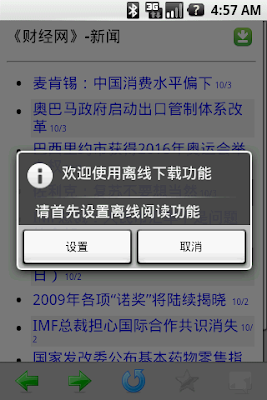
(2) If this is your first time, please configure the offline settings.
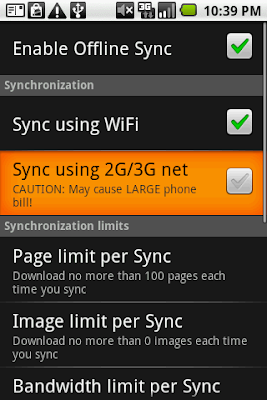
(3) DO NOT enable "Sync with 2G/3G net" unless you have unlimited data plan from your wireless carrier.
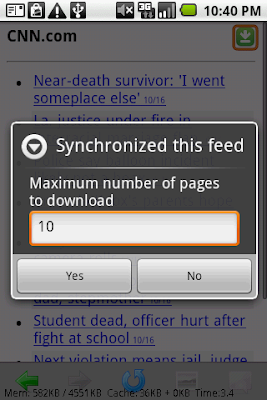
(4) Choose how many pages you'd like to download, and click OK
(5) When syncing is complete, the title of the saved feed will show the gray icon
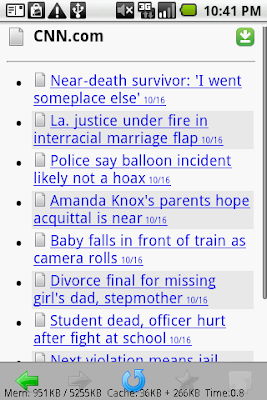
(6) The title of a saved article also shows the gray icon

(B) Reading Saved Articles
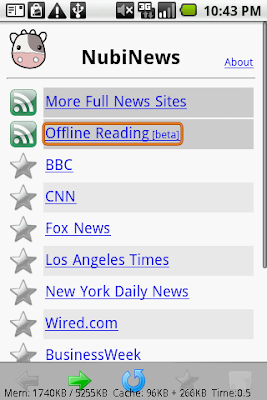
(1) From NubiNews home page, choose Offline Reading
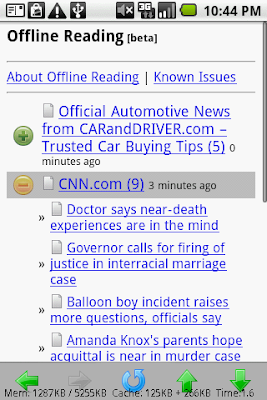
(2) Downloaded news articles are listed by download date
(C) Syncing Multiple Feeds
(1) To sync multiple feeds at the same time, first use NubiNews to browse to the desired feed.

(2) Press your phone's MENU key, and choose Bookmarks
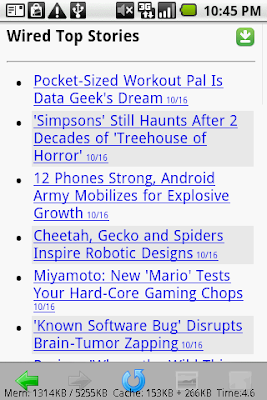
(3) Press the button to add a bookmark for the feed
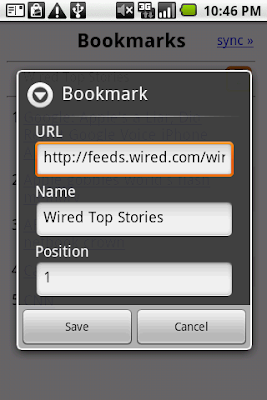
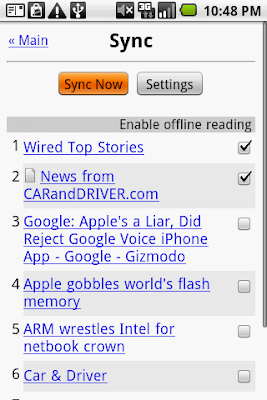
(4) After you have finished adding the bookmarks, choose Sync»
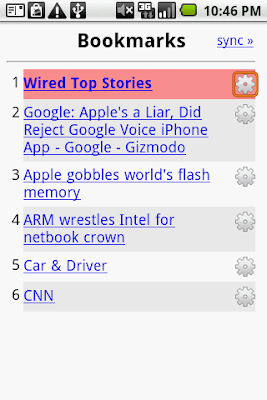
(5) Select the bookmark(s) that you'd like to download, and then choose Sync Now
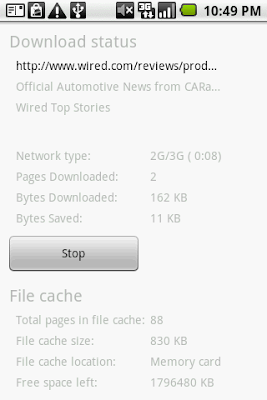
(6) NubiNews starts downloading multiple channels
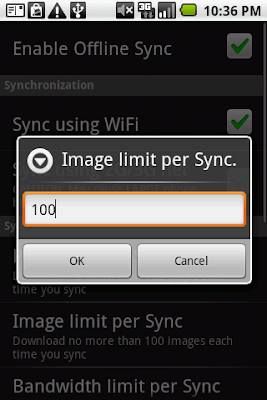
(D) About Images
(1) By default, images are not saved during sync operations. If you'd like to save images as well, please press your phone's MENU key, and then choose Settings -> Sync Settings -> Enable Offline Sync -> Image limit per Sync.
(2) When an article is displayed, if some of its images were not saved in memory card, you will see a default image instead. To view such images, please first make sure your phone have internet access, and then click on the default image.
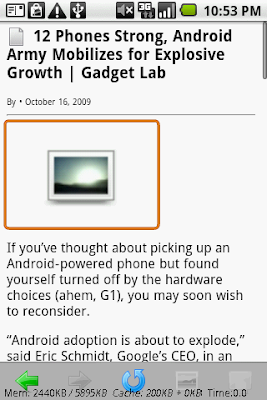
(3) NubiNews will start to load the image
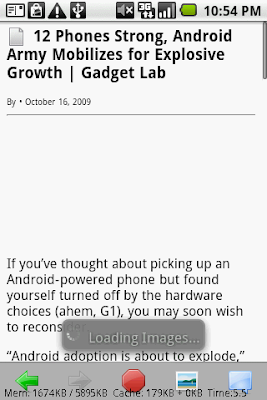
(4) When the image is downloaded, it will be displayed automatically
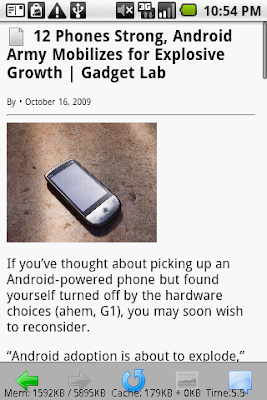
With Offline Reading, you can save news articles into your phone's memory card. Uses include:
- Read news when you don't have internet access (inside subway or plane)
- Avoid using expensive data networks (e.g., when you're in roaming area)
- Quickly read many articles without downloading them one-by-one
(1) Tap on the download icon next to the feed title

(2) If this is your first time, please configure the offline settings.

(3) DO NOT enable "Sync with 2G/3G net" unless you have unlimited data plan from your wireless carrier.

(4) Choose how many pages you'd like to download, and click OK

(5) When syncing is complete, the title of the saved feed will show the gray icon

(6) The title of a saved article also shows the gray icon

(B) Reading Saved Articles
(1) From NubiNews home page, choose Offline Reading

(2) Downloaded news articles are listed by download date

(C) Syncing Multiple Feeds
(1) To sync multiple feeds at the same time, first use NubiNews to browse to the desired feed.

(2) Press your phone's MENU key, and choose Bookmarks

(3) Press the
button to add a bookmark for the feed
(4) After you have finished adding the bookmarks, choose Sync»

(5) Select the bookmark(s) that you'd like to download, and then choose Sync Now

(6) NubiNews starts downloading multiple channels

(D) About Images
(1) By default, images are not saved during sync operations. If you'd like to save images as well, please press your phone's MENU key, and then choose Settings -> Sync Settings -> Enable Offline Sync -> Image limit per Sync.

(2) When an article is displayed, if some of its images were not saved in memory card, you will see a default image instead. To view such images, please first make sure your phone have internet access, and then click on the default image.

(3) NubiNews will start to load the image

(4) When the image is downloaded, it will be displayed automatically

Thursday, October 8, 2009
离线阅读使用指南
离线阅读简介
大牛新闻的离线阅读功能可以把多篇新闻下载存放于手机的记忆卡里,有以下的用途:
(1) 点击新闻频道右上角的下载图标

(2) 如首次使用,请小心设定离线功能,否则可能使用巨量流量!!!!
(3) 除非你有无限量包月服务,否则千万别激活“用2G/3G网络下载”

(4) 选择下载页数,然后点选“确认”

(5) 下载完毕后,在新闻列表中,已储存的新闻标题旁会出现灰色图标

(6) 已储存的新闻内容,标题旁也会出现灰色图标

(B)阅读已下载的新闻
(1)在大牛新闻首页,点选“离线阅读”

(2)已下载的新闻会以下载时间顺序排列

(C)同时下载多个频道
(1) 如果要同时下载多个频道,请先浏览到您喜欢的频道
(2)按手机上的“MENU”或“菜单”硬键,然后选“书签”

(3) 加好书签后选“Sync»”

(4) 点选需要下载的书签(可选多个),然后按“Sync Now”

(5) 开始下载多个频道

(D) 关于图像
(1) 默认的下载设定并不会存储图像。如果您要存储图像,请按手机上的“MENU”或“菜单”硬键,然后选“设置” -> “离綫设置” -> “图像上限”

(2) 如果新闻中的某些图像没有存储在记忆卡,在阅读已该新闻时,这些图像会显示成默认图像。如要看该图像,请先保证你的手机已经上线,然后点击默认图像

(3) 开始下载图像

(4) 图像下载后自动显示

大牛新闻的离线阅读功能可以把多篇新闻下载存放于手机的记忆卡里,有以下的用途:
- 在没有连线(如在地铁内)的地方阅读新闻
- 避免使用高收费的数据网络(含东亚某国各大移动网络运营商)
- 高速阅读多个新闻,无需逐一下载
(1) 点击新闻频道右上角的下载图标

(2) 如首次使用,请小心设定离线功能,否则可能使用巨量流量!!!!
(3) 除非你有无限量包月服务,否则千万别激活“用2G/3G网络下载”

(4) 选择下载页数,然后点选“确认”

(5) 下载完毕后,在新闻列表中,已储存的新闻标题旁会出现灰色图标

(6) 已储存的新闻内容,标题旁也会出现灰色图标

(B)阅读已下载的新闻
(1)在大牛新闻首页,点选“离线阅读”

(2)已下载的新闻会以下载时间顺序排列

(C)同时下载多个频道
(1) 如果要同时下载多个频道,请先浏览到您喜欢的频道
(2)按手机上的“MENU”或“菜单”硬键,然后选“书签”

(3) 加好书签后选“Sync»”

(4) 点选需要下载的书签(可选多个),然后按“Sync Now”

(5) 开始下载多个频道

(D) 关于图像
(1) 默认的下载设定并不会存储图像。如果您要存储图像,请按手机上的“MENU”或“菜单”硬键,然后选“设置” -> “离綫设置” -> “图像上限”

(2) 如果新闻中的某些图像没有存储在记忆卡,在阅读已该新闻时,这些图像会显示成默认图像。如要看该图像,请先保证你的手机已经上线,然后点击默认图像

(3) 开始下载图像

(4) 图像下载后自动显示

Tuesday, October 6, 2009
Offline reading beta1 has been released
The UI is in Chinese only. See
http://www.hiapk.com/bbs/thread-30821-1-1.html
I hope to release product version for all 3 languages in about 1~2 weeks (if beta testing proves to be acceptable)
http://www.hiapk.com/bbs/thread-30821-1-1.html
I hope to release product version for all 3 languages in about 1~2 weeks (if beta testing proves to be acceptable)
Subscribe to:
Posts (Atom)